How it works
How to use File Perks, step by step. Every tool follows the same pattern: choose a tool, add your files, set the options, press the button and download. Everything happens in your browser.
1Find the right tool
Each tool does one job. Start from the home page, the "Tools" menu or the tools directory.
- Open "All tools" in the menu, or type in the search box: a format ("heic", "webp") or a job ("compress", "crop").
- The list narrows as you type. Choose a tool to open it.
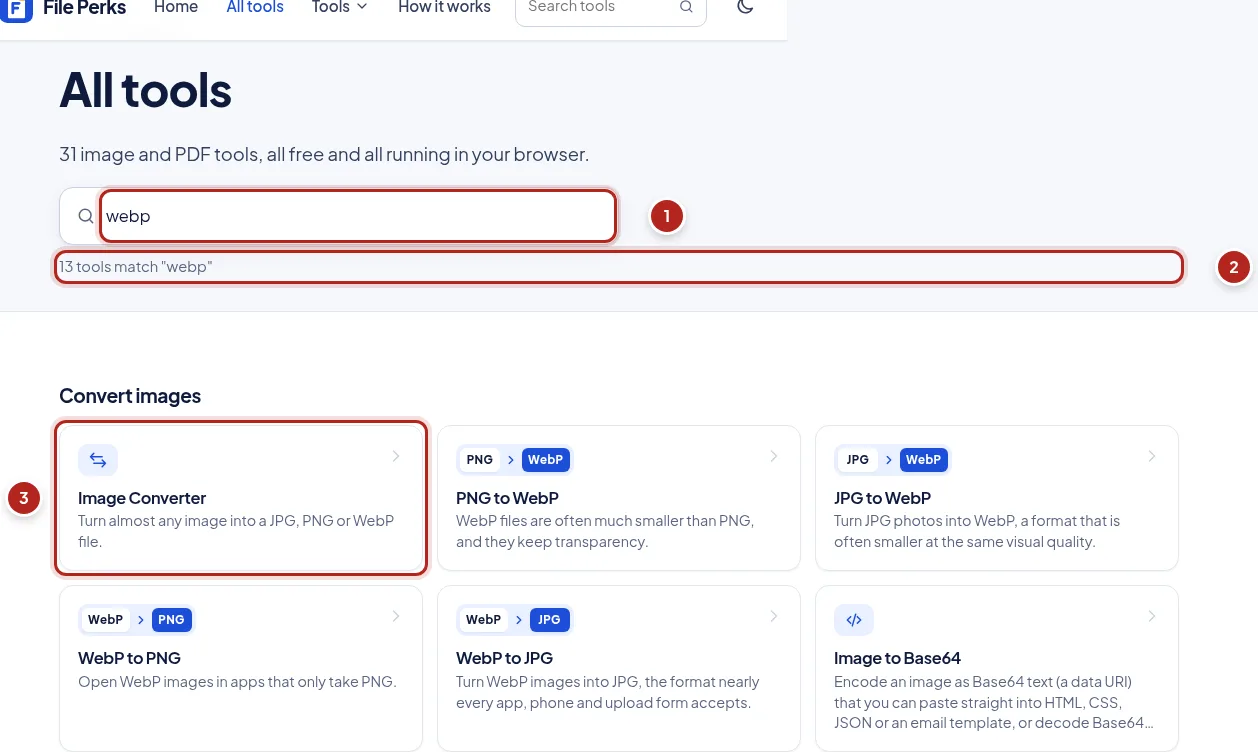
- Search by format or task
- Matching tools
- Open a tool
2Add your files
Files are opened by your browser on your device. Nothing is uploaded.
- Drop files on the dashed box, or press "Choose files" and pick them. On a phone this opens your photos or files.
- Each file is checked straight away: its real format (not just its name), its size and its dimensions. A file that cannot be used shows the reason in red, and the others carry on.
- Remove a file with its × button. Add more at any time.
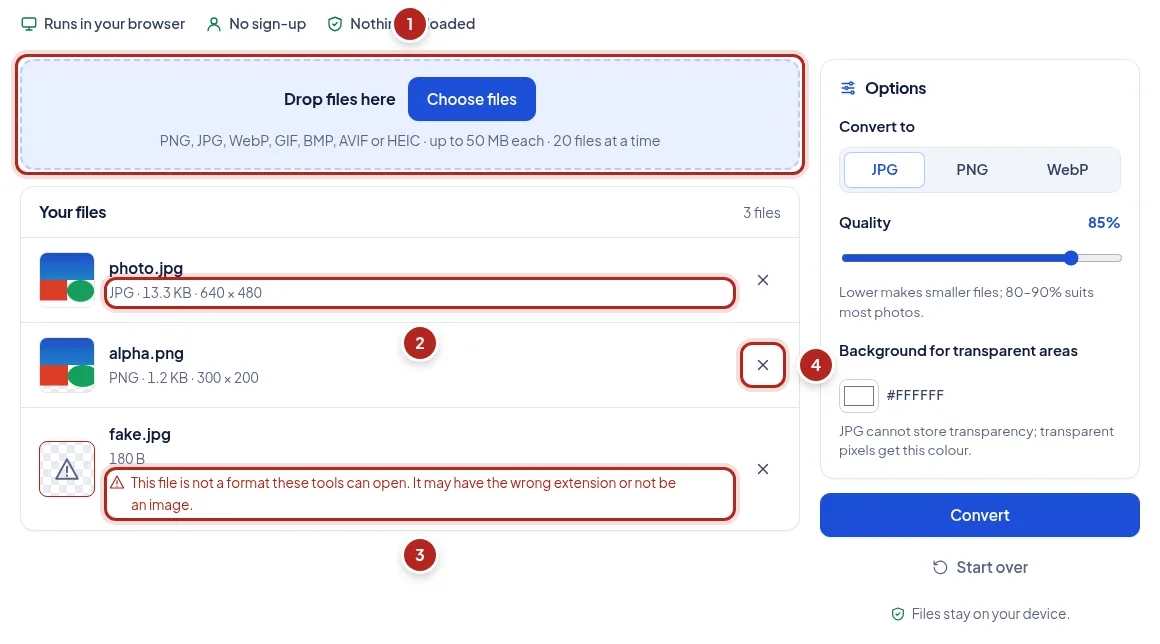
- Drop files here or choose them
- A checked file with its format, size and dimensions
- A file that cannot be used, and why
- Remove a file
3Set the options
Options sit next to your files and keep sensible defaults, so you can usually press the button straight away.
- Choose the output format where the tool offers a choice.
- Set the quality for JPG and WebP: lower makes smaller files.
- For JPG, pick the colour that fills transparent areas (JPG cannot store transparency).
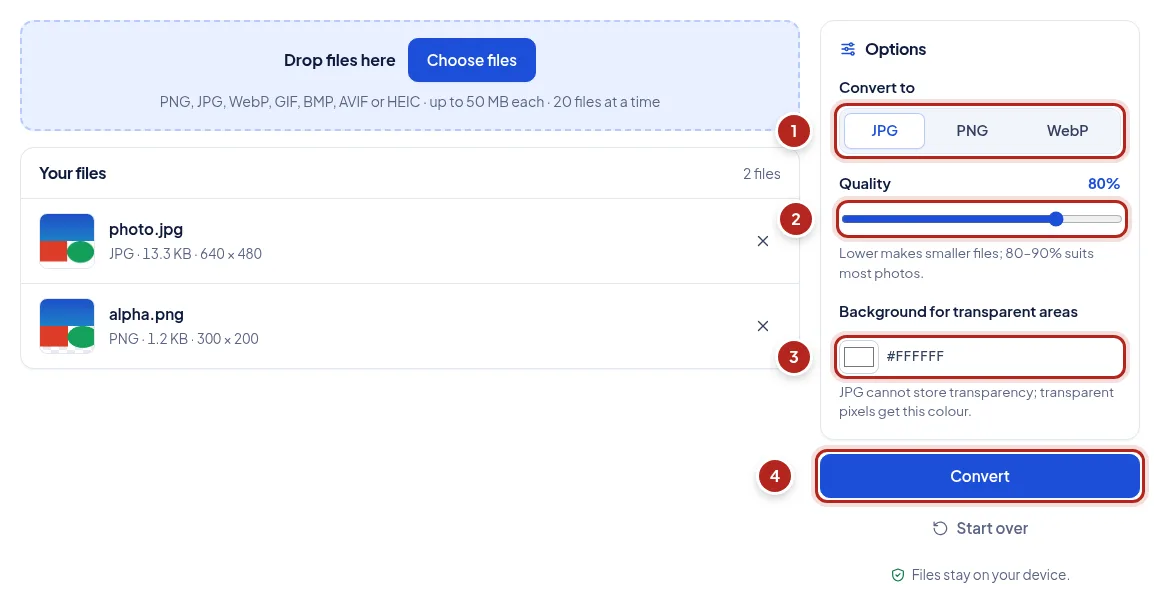
- Output format
- Quality
- Background for transparent areas
- Start converting
4Convert and download
Each file shows its progress and then its real result.
- Press the button ("Convert", "Compress" or "Resize"). Each file shows what is happening, then the new format, size and the change in size.
- Press "Download" on a file, or "Download all (.zip)" for every result at once.
- Changed an option? Press the button again to redo the files. "Start over" clears everything.
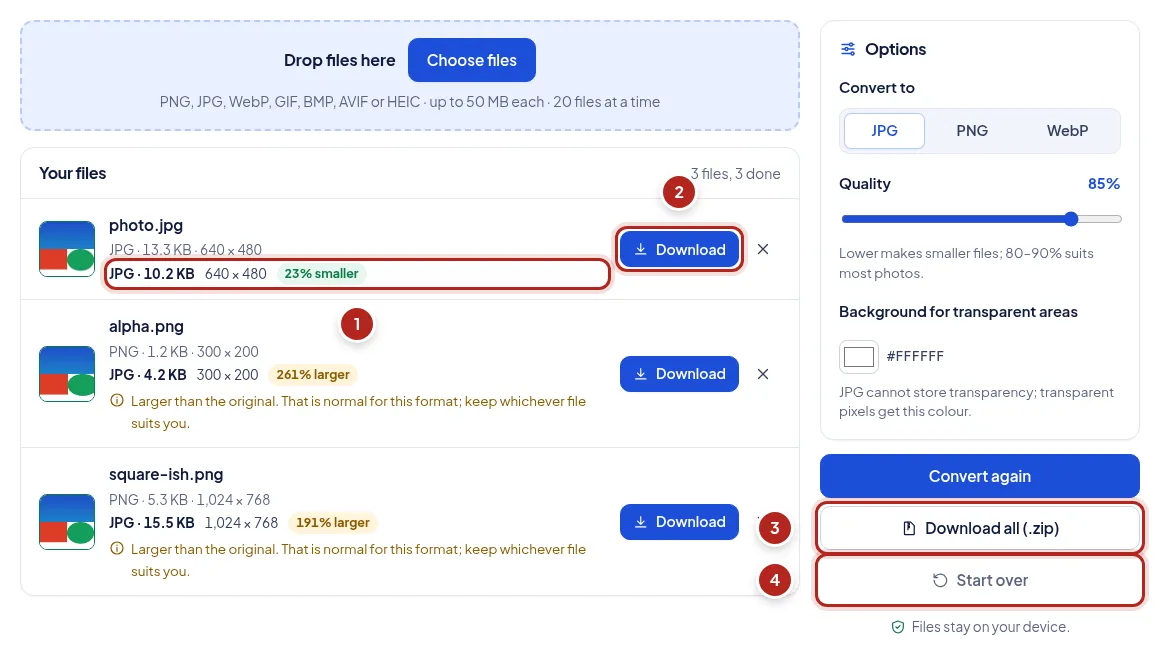
- The result: format, size and change
- Download one file
- Download every result as a ZIP
- Clear and start again
5Crop an image
The Image Cropper works on one image at a time.
- Add an image; it appears with a crop frame over it.
- Drag inside the frame to move it, and drag a corner to resize it. With a keyboard: Tab to the frame, arrow keys move it, Shift + arrow keys resize it.
- Choose a ratio such as 1:1 for a profile picture, or type exact pixels.
- Press "Crop" and download the result.
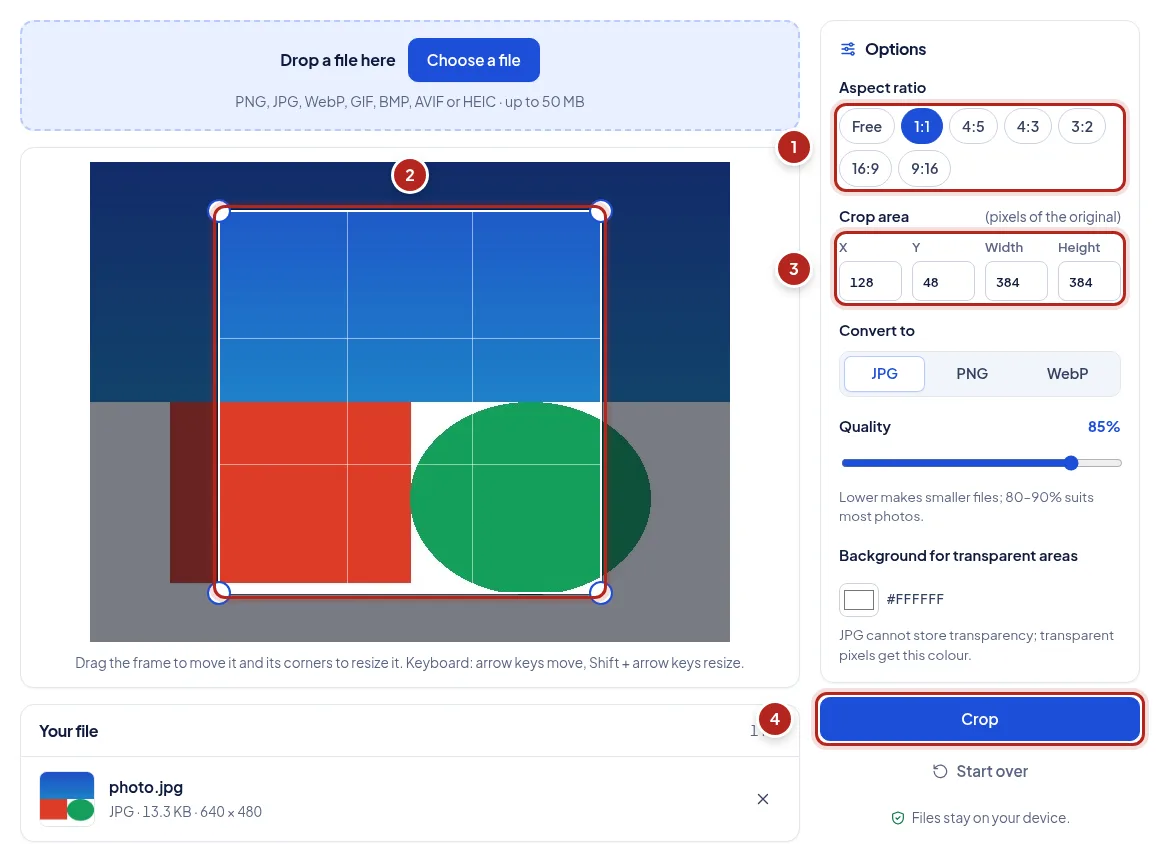
- Choose a ratio
- The crop frame: drag to move, corners to resize
- Exact position and size in pixels
- Crop
7Change a plain background
The Background Color Changer swaps one plain background colour for another, or makes it transparent.
- Add an image with a plain background (or a transparent PNG).
- Keep "Edge colour", or click the picture to pick the colour to replace.
- Pick the new colour or "Transparent", adjust the tolerance, and press "Change background".
- Switch between "Original" and "Result" to compare, then download.
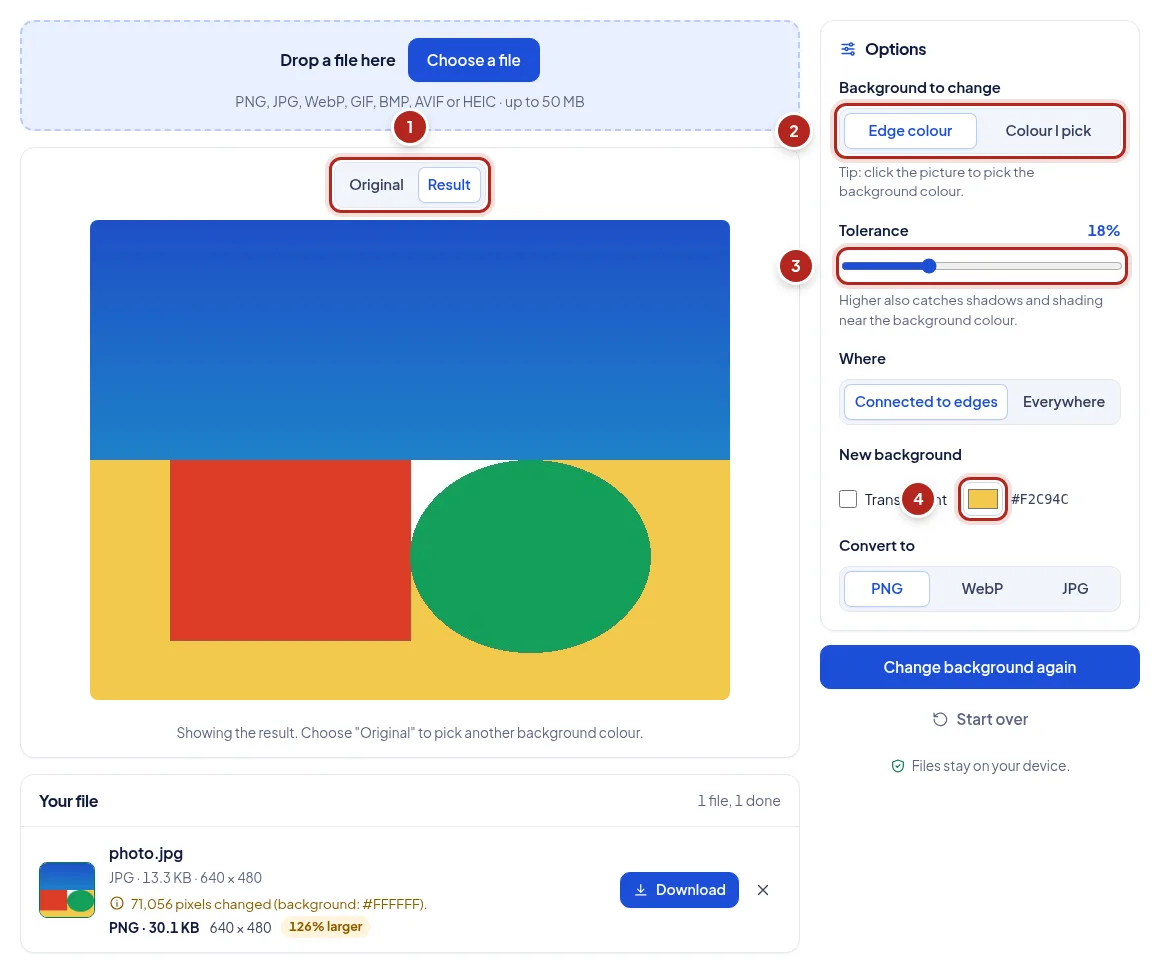
- Before and after
- The colour to replace
- How close a colour must be
- The new background
8Make a favicon
The Favicon Generator makes every icon a website needs from one image.
- Add a square logo (512 × 512 or larger) or an SVG.
- Choose "Fit whole image" or "Fill square", and padding or a background if you like.
- Press "Create favicons", check the previews, then download the ZIP.
- Copy the files to your website's root folder and paste the code shown into your page's <head>.
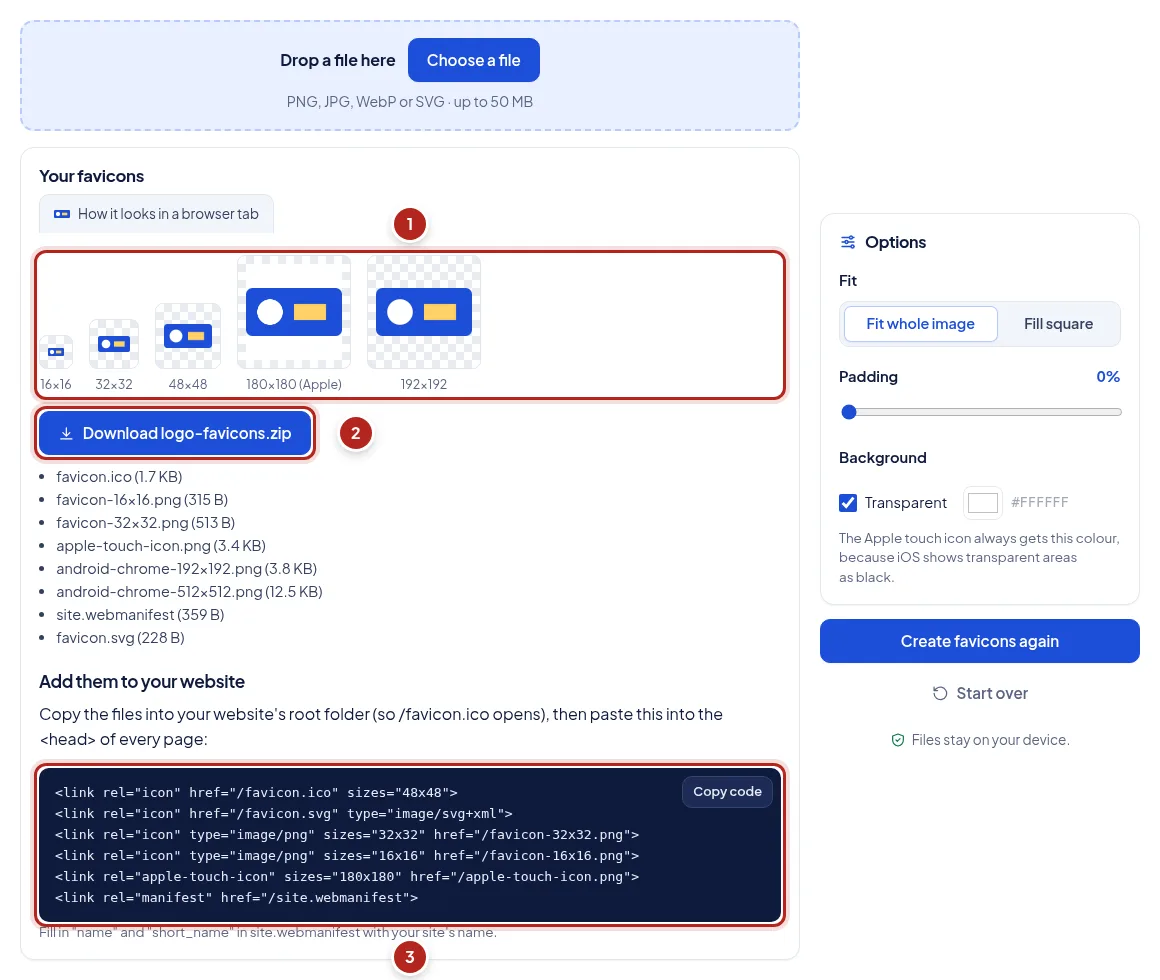
- Previews at every size
- Download the ZIP
- Copy the code for your page
9Merge PDFs into one
Merge PDF joins files in the order of the list. The same arrows put images in order in JPG to PDF.
- Add two or more PDFs. Each shows its number of pages; a protected PDF says it must be unlocked first.
- Put the files in order with the up and down arrows next to each one.
- Press "Merge PDFs", then download merged.pdf from the green box.
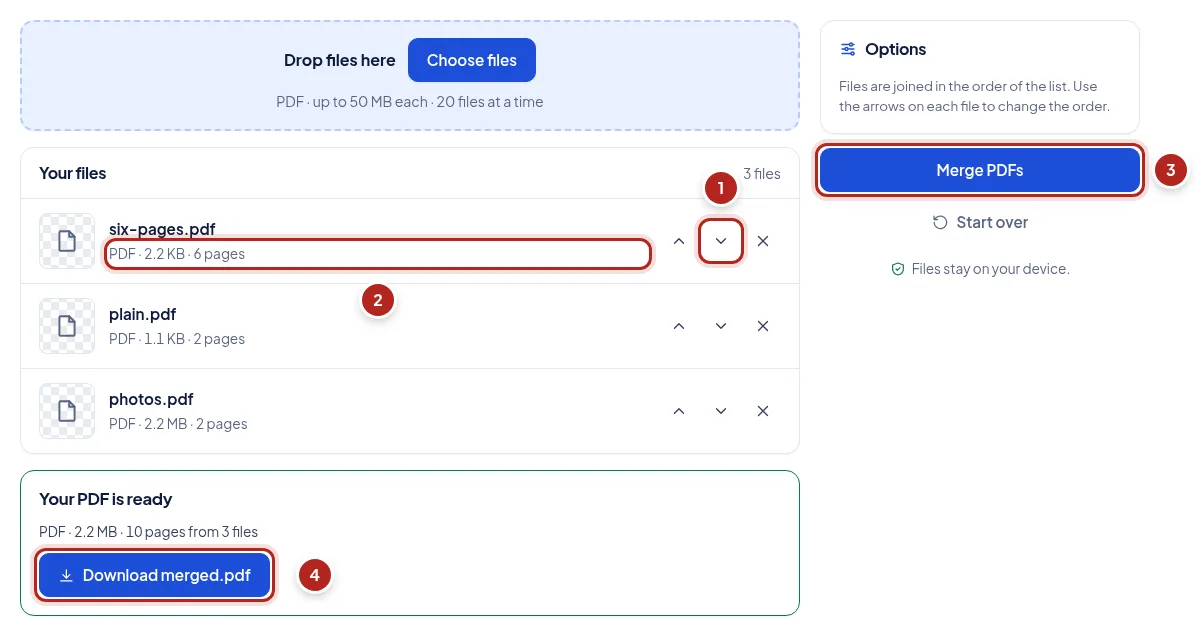
- Move a file earlier or later
- Pages in each file
- Merge
- Download the merged PDF
10Choose pages: remove, extract or split
Tools that work on the pages of one PDF show a small picture of every page.
- Add a PDF; its pages appear as numbered pictures.
- In Remove PDF Pages and Extract PDF Pages, click pages to choose them, or type numbers and ranges such as 2, 5-7. Both stay in step.
- In Split PDF, choose single pages, every few pages, or ranges you type; the note says how many files you will get.
- Press the button and download the new PDF (several files come as a ZIP).
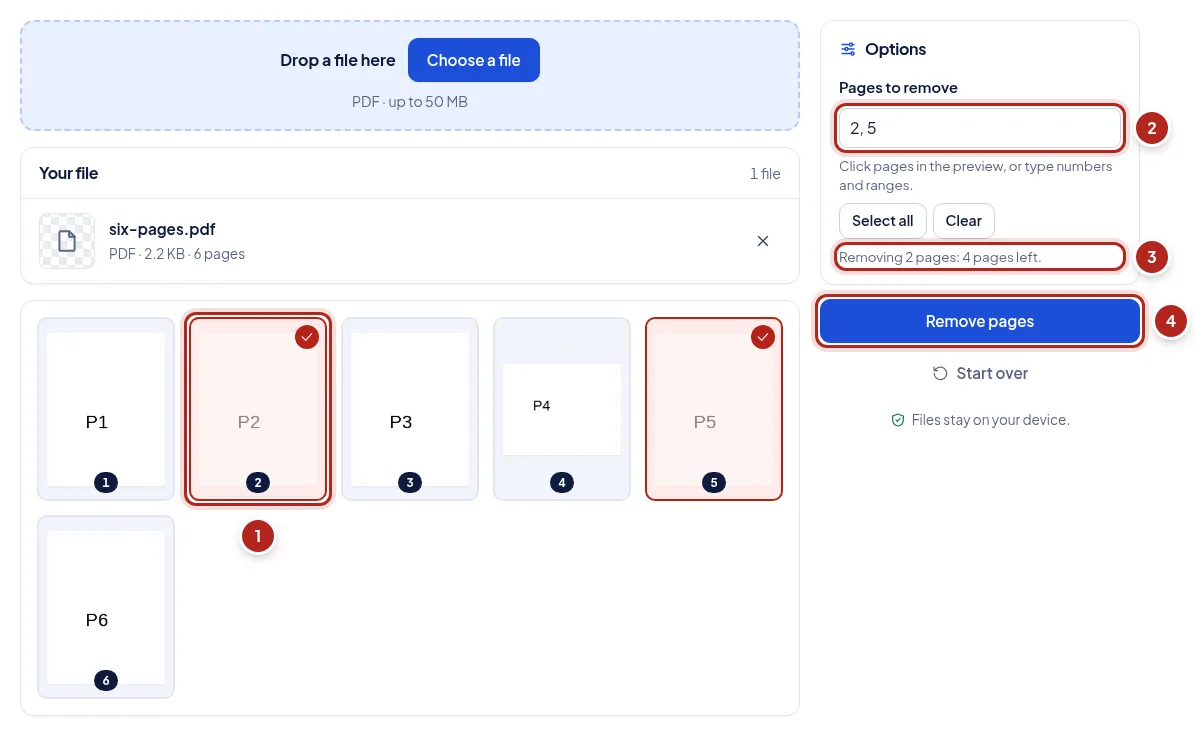
- A chosen page
- The same pages as numbers
- What the new file will have
- Save the new PDF
11Reorder, turn and delete pages
Organize PDF does all page changes at once; Rotate PDF only turns pages.
- Add a PDF. Under each page are buttons: move earlier, turn, delete, move later.
- Drag a page onto another with a mouse, or use the arrows (also by keyboard or touch).
- The bin marks a page for deleting; press it again to keep it. "Undo all changes" starts over.
- Press "Save PDF" and download.
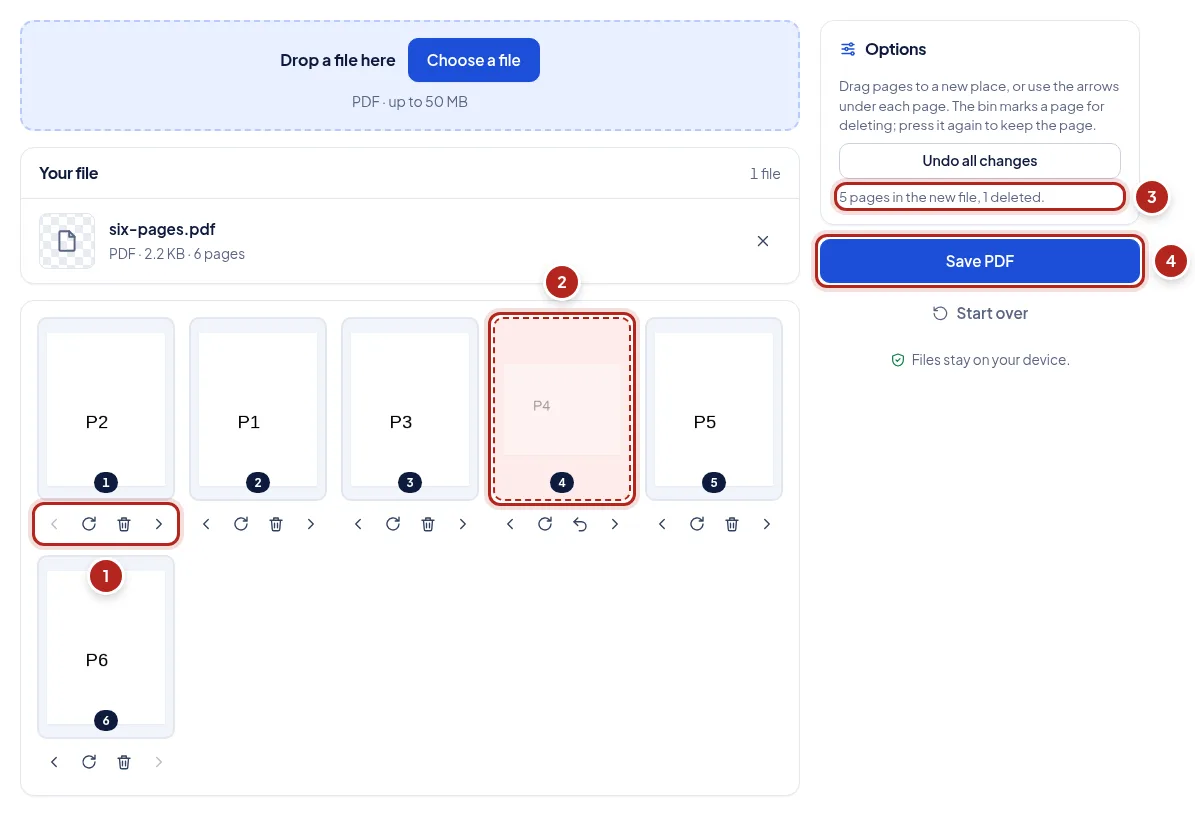
- Move, turn or delete a page
- A page marked for deleting
- Summary of the new file
- Save the new PDF
12Make a PDF smaller
Compress PDF shrinks the photos and scans inside a PDF; text stays sharp.
- Add one or more PDFs.
- Choose "Smallest file", "Balanced" or "Best quality".
- Press "Compress". Each file shows its new size; a PDF without large photos says it cannot be made smaller.
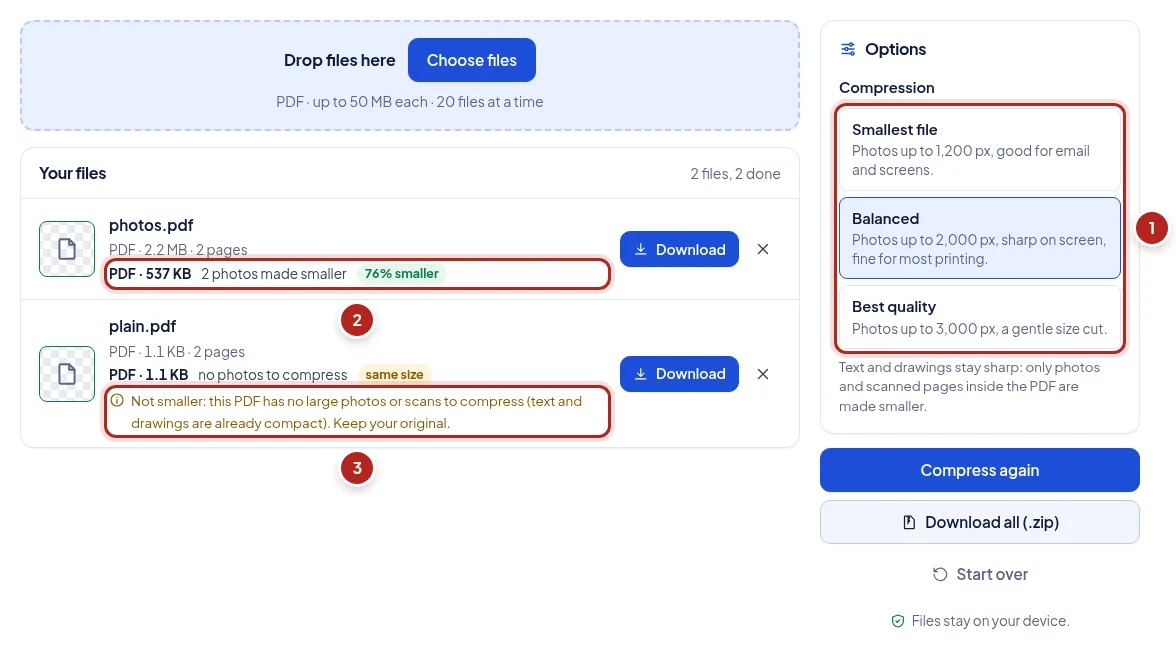
- Compression level
- The new size and the saving
- A text-only PDF: nothing to shrink
13Turn images into a PDF, and PDF pages into images
JPG to PDF puts one image on each page. PDF to JPG and PDF to PNG do the opposite.
- In JPG to PDF, add photos or scans (JPG, PNG, HEIC and more) and put them in order.
- Choose the page size (A4, US Letter or the size of each image), orientation and margin, then press "Create PDF".
- In PDF to JPG or PDF to PNG, choose the quality (72, 150 or 300 dpi) and all pages or some, then press "Convert". Several pages download as a ZIP.
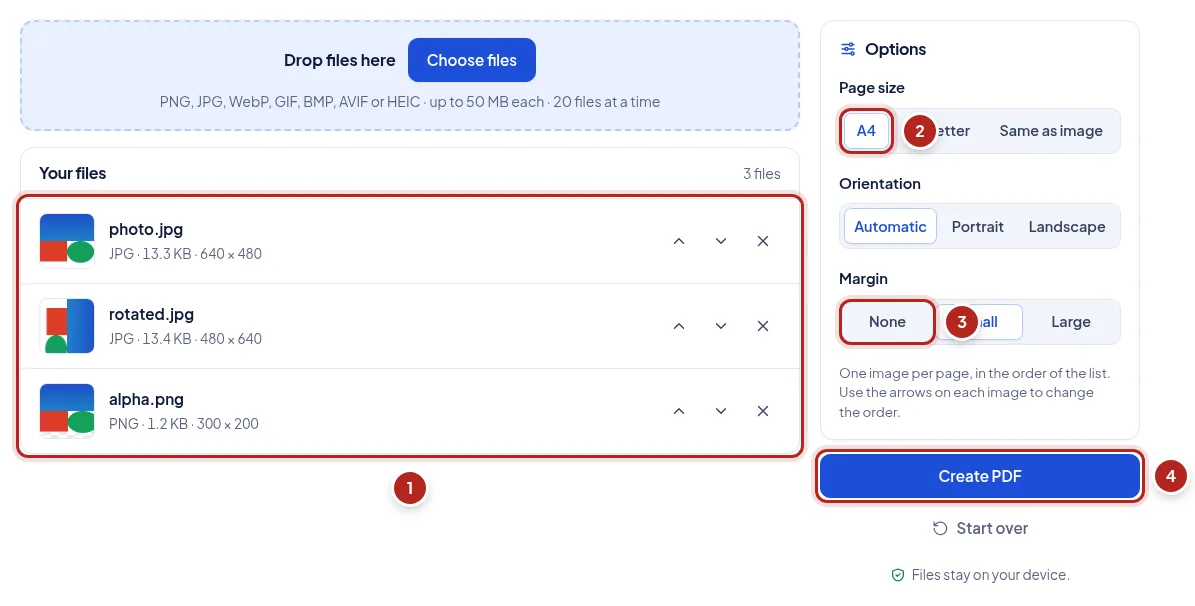
- Images in page order
- Page size
- Margin
- Create the PDF
14Protect a PDF with a password
Protect PDF encrypts files (AES-256) so they open only with your password.
- Add the PDFs.
- Type the password twice; the boxes warn while they differ. The eye button shows what you typed.
- Press "Protect", download the files, and send the password separately.
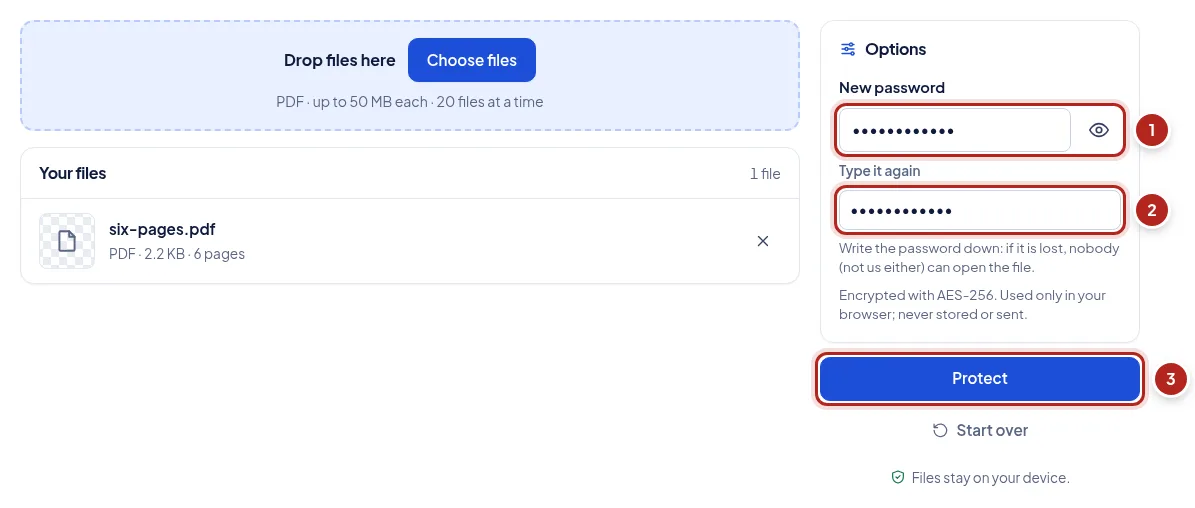
- The new password
- Type it again
- Protect, then download
15Unlock a PDF
Unlock PDF saves a copy without the password, using the password you type. It never guesses passwords.
- Add the PDFs. Each one says whether it needs its password or only blocks printing or copying.
- For files that need it, type the password (it stays in your browser).
- Press "Unlock" and download the unlocked copies.
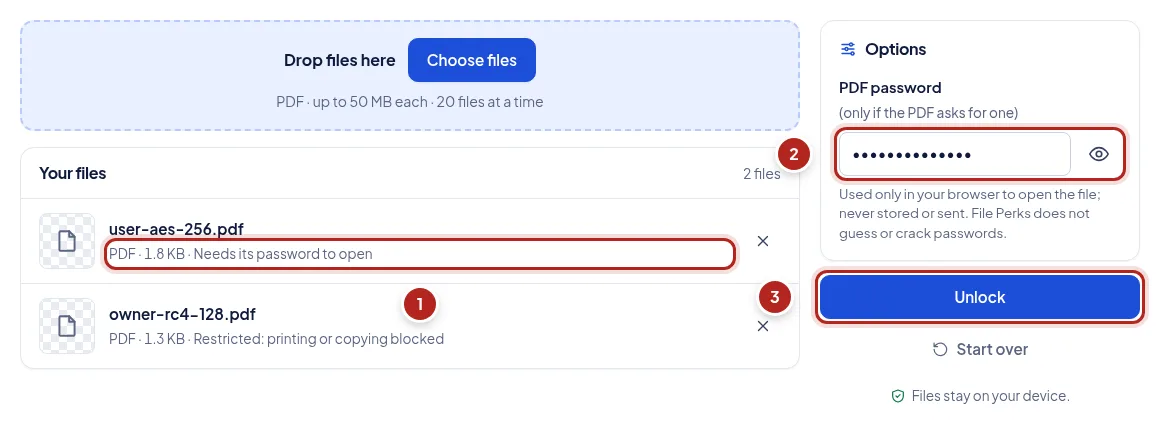
- What each PDF needs
- The password, used only on your device
- Unlock, then download each copy
If something looks wrong
- "This file is not a format these tools can open"
- The file's content is not a supported image, whatever its name says. A file renamed from .pdf to .jpg, for example, is still a PDF.
- "Your browser cannot create WebP files"
- Some browsers (including some Safari versions) show WebP but cannot make it. Use Chrome, Edge or Firefox, or choose JPG or PNG.
- A HEIC photo fails or takes long
- The decoder loads the first time (about 3 MB). Very large photos need a lot of memory: try a computer, or fewer photos at once.
- The result is larger than the original
- Your file was already well compressed, or a lossless format (PNG) was chosen. File Perks shows it plainly; keep whichever file is smaller.
- "The result was made smaller than you asked"
- Your browser cannot draw an image that large (common on older phones). The result is as large as it allows; use a computer for bigger sizes.
- "This PDF is protected with a password or restrictions"
- The PDF tools need a file that opens freely. If you know its password, remove it with Unlock PDF first, then use the other tool on the unlocked copy.
- Compress PDF did not make my file smaller
- Only photos and scans inside a PDF can be shrunk. A PDF of plain text is already compact, so you get your original back. Try "Smallest file" for PDFs with photos.
- PDF to Text finds no text
- The PDF is a scan: its pages are pictures of text. Reading words from pictures needs OCR, which is not part of this tool.
- Nothing happens when I press Download
- Your browser may be blocking downloads from this site. Allow them in the browser's settings and try again.
Still stuck? Contact us and tell us the tool, your browser and the message you saw.
6Resize for social media
The Social Media Image Resizer knows the sizes for seven platforms.